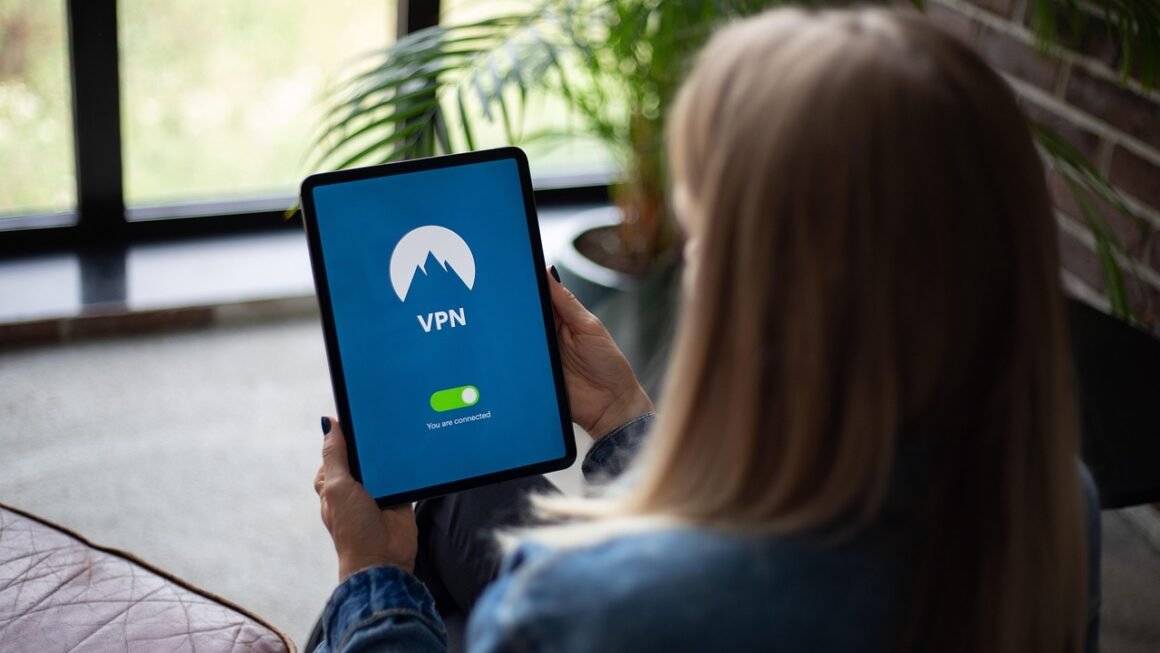
Protecting your online privacy on a Mac is no longer optional – it’s essential. With increasing cyber threats and data breaches, using a Virtual Private Network (VPN) is a smart way to safeguard your sensitive information. This comprehensive guide will explore the benefits of using a VPN on your Mac, how to choose the right one, and everything else you need to know to stay secure online.
Why Use a VPN on Your Mac?
Enhanced Security
A VPN encrypts your internet traffic, shielding your data from prying eyes. This is particularly important when using public Wi-Fi networks, which are notoriously insecure.
- Data Encryption: VPNs use sophisticated encryption protocols like AES-256 (Advanced Encryption Standard) to scramble your data, making it unreadable to hackers.
- Protection on Public Wi-Fi: Public Wi-Fi hotspots are often targeted by cybercriminals. A VPN ensures your data remains secure, even on unsecured networks.
- Example: Imagine you’re working from a coffee shop. Without a VPN, someone could potentially intercept your emails, passwords, and browsing history. A VPN makes this virtually impossible.
Privacy Protection
VPNs mask your IP address, making it difficult to track your online activity. This prevents websites, advertisers, and even your internet service provider (ISP) from monitoring your browsing habits.
- IP Address Masking: Your IP address is like your online fingerprint. A VPN replaces your real IP address with one from the VPN server, effectively anonymizing your online presence.
- Avoiding ISP Tracking: ISPs can track your browsing history and sell this data to advertisers. A VPN prevents this by encrypting your traffic.
- Example: If you’re researching sensitive topics online, such as health information or financial investments, a VPN can prevent this data from being linked back to you.
- Statistic: According to a recent study, over 60% of internet users are concerned about their online privacy.
Access Geo-Restricted Content
Many streaming services and websites restrict access based on your geographic location. A VPN allows you to bypass these restrictions and access content from anywhere in the world.
- Bypassing Geo-Blocks: Change your virtual location to access region-locked movies, TV shows, and other content.
- Traveling Abroad: Access your favorite streaming services and websites as if you were back home.
- Example: Want to watch a BBC iPlayer show from outside the UK? Simply connect to a UK-based VPN server.
- Practical Tip: Before subscribing to a VPN specifically for streaming, check if it reliably bypasses the restrictions of your desired services.
Preventing Throttling
ISPs sometimes throttle internet speeds for certain types of traffic, such as streaming or downloading. A VPN can help prevent this by masking your traffic and making it harder for your ISP to identify and throttle specific activities.
- Circumventing Speed Throttling: Enjoy consistent internet speeds, even during peak hours or when streaming bandwidth-intensive content.
- Improved Gaming Experience: A VPN can help reduce latency and improve your gaming experience by bypassing congested network routes.
- Example: If your ISP is throttling your Netflix streaming speeds, a VPN can bypass this and allow you to watch your shows without buffering.
Choosing the Right VPN for Your Mac
Key Features to Consider
Selecting the right VPN requires careful consideration. Look for these essential features:
- Strong Encryption: AES-256 encryption is the industry standard for data protection.
- No-Logs Policy: Choose a VPN with a strict no-logs policy, meaning they don’t track or store your online activity.
- Server Network: A large server network provides more options for bypassing geo-restrictions and finding a fast connection.
- Speed and Reliability: Test the VPN’s speed and reliability before committing to a long-term subscription. Many offer free trials or money-back guarantees.
- User-Friendly Interface: Opt for a VPN with a simple and intuitive Mac app.
- Kill Switch: A kill switch automatically disconnects your internet connection if the VPN connection drops, preventing your data from being exposed.
- Multiple Device Support: Choose a VPN that allows you to connect multiple devices simultaneously, including your Mac, iPhone, and iPad.
Top VPN Providers for Mac
Here are some reputable VPN providers known for their Mac compatibility and performance:
- ExpressVPN: Known for its fast speeds, strong security, and user-friendly Mac app.
- NordVPN: Offers a wide range of features, including double VPN and Onion over VPN.
- Surfshark: A budget-friendly option with unlimited device connections and a clean interface.
- CyberGhost: Provides specialized servers for streaming and torrenting.
Free VPNs vs. Paid VPNs
While free VPNs might seem appealing, they often come with significant limitations and risks.
- Limitations of Free VPNs:
– Limited Bandwidth: Free VPNs typically have data caps and throttle speeds.
– Fewer Server Locations: Restricted access to server locations limits your ability to bypass geo-restrictions.
– Data Logging: Some free VPNs log your data and sell it to third parties.
– Security Risks: Free VPNs may contain malware or other security vulnerabilities.
- Benefits of Paid VPNs:
– Unlimited Bandwidth: Enjoy unrestricted data usage and faster speeds.
– Extensive Server Network: Access a wide range of server locations worldwide.
– Enhanced Security: Benefit from strong encryption and a strict no-logs policy.
– Reliable Support: Get access to customer support if you encounter any issues.
Setting Up and Using a VPN on Your Mac
Installing the VPN App
Most VPN providers offer a dedicated Mac app that simplifies the setup process.
- Download and Install: Download the VPN app from the provider’s website and follow the installation instructions.
- Login: Enter your account credentials to log in to the app.
Connecting to a VPN Server
Once the app is installed, connecting to a VPN server is straightforward.
- Choose a Server Location: Select a server location from the list. Consider proximity for speed or a specific country to bypass geo-restrictions.
- Connect: Click the connect button to establish a VPN connection.
- Verify Your IP Address: Use a website like “whatismyipaddress.com” to verify that your IP address has changed.
Configuring VPN Settings
Customize your VPN settings to optimize your experience.
- Enable Kill Switch: Activate the kill switch to protect your data in case of a connection drop.
- Choose a Protocol: Experiment with different VPN protocols (e.g., OpenVPN, IKEv2) to find the one that offers the best performance for your network.
- Auto-Connect: Configure the VPN to automatically connect when you start your Mac.
Troubleshooting Common VPN Issues on Mac
Slow Speeds
Slow VPN speeds can be frustrating. Here’s how to troubleshoot them:
- Choose a Closer Server: Connect to a server closer to your physical location.
- Switch Protocols: Try different VPN protocols (e.g., WireGuard, IKEv2).
- Check Your Internet Connection: Ensure your internet connection is stable and fast.
- Restart Your Router: Sometimes, a simple router restart can improve speeds.
Connection Problems
If you’re having trouble connecting to the VPN, try these steps:
- Check Your Credentials: Verify that your username and password are correct.
- Firewall Settings: Make sure your firewall isn’t blocking the VPN connection.
- Contact Support: Reach out to the VPN provider’s support team for assistance.
DNS Leaks
DNS leaks can expose your browsing activity even when connected to a VPN.
- Enable DNS Leak Protection: Most VPNs have built-in DNS leak protection. Make sure it’s enabled in the settings.
- Test for Leaks: Use a website like “dnsleaktest.com” to check for DNS leaks.
Conclusion
Using a VPN on your Mac is a crucial step towards protecting your online privacy and security. By encrypting your internet traffic, masking your IP address, and allowing you to bypass geo-restrictions, a VPN provides a comprehensive solution for staying safe and secure online. Choose a reputable VPN provider, configure your settings properly, and enjoy a safer and more private internet experience on your Mac.