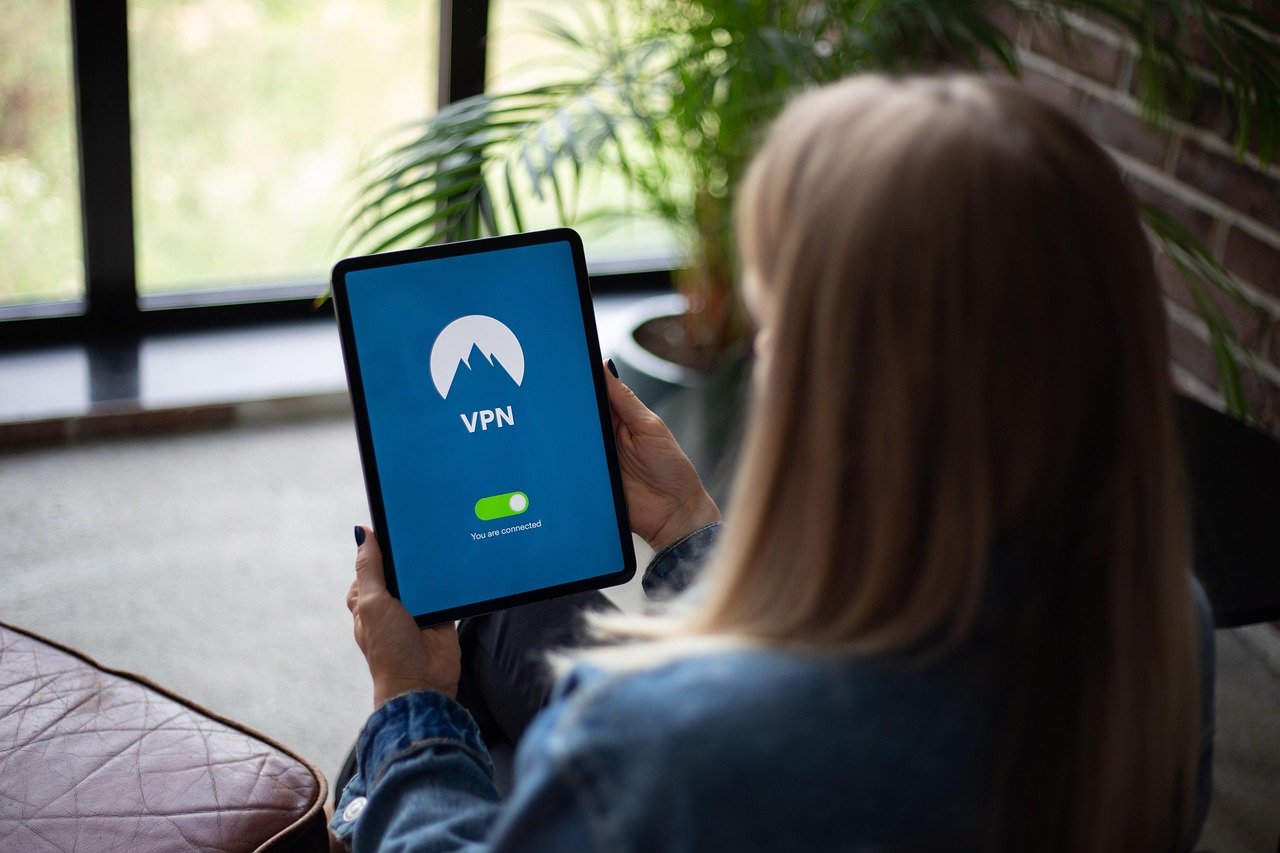
Imagine browsing the internet with a shield, protecting your data from prying eyes and unlocking a world of content regardless of location. A Virtual Private Network (VPN) does just that, and for Windows users, it’s becoming an increasingly essential tool. From securing your Wi-Fi connection at your favorite coffee shop to accessing streaming services blocked in your region, a VPN for Windows can significantly enhance your online experience. This guide will explore the benefits, features, and best practices for choosing and using a VPN on your Windows device.
Why Use a VPN on Windows?
The reasons for using a VPN on Windows are varied and compelling, catering to privacy-conscious individuals, avid streamers, and remote workers alike. It’s about taking control of your digital footprint and securing your online activity.
Enhanced Privacy and Security
- Masking Your IP Address: A VPN hides your real IP address, replacing it with one from the VPN server you connect to. This makes it much harder for websites, advertisers, and even your ISP to track your online activities.
- Encryption: VPNs encrypt your internet traffic, scrambling the data between your device and the VPN server. This prevents hackers from intercepting sensitive information, such as passwords, credit card details, and browsing history, particularly on public Wi-Fi networks.
- Protection on Public Wi-Fi: Public Wi-Fi networks are notoriously insecure. VPNs provide a secure tunnel for your data, making it much more difficult for hackers to eavesdrop on your connection and steal your personal information. For example, using a VPN when accessing your online banking on a public Wi-Fi protects your credentials.
- Avoiding ISP Tracking: Your Internet Service Provider (ISP) can track your online activity and may even sell this data to third parties. A VPN prevents your ISP from seeing what you’re doing online.
Accessing Geo-Restricted Content
- Bypassing Geographic Restrictions: Many streaming services, websites, and games are geo-restricted, meaning they are only available in certain countries. A VPN allows you to connect to a server in a different country, effectively bypassing these restrictions and granting you access to content from around the world. For instance, you can connect to a UK server to watch BBC iPlayer from outside the UK.
- Travel and Entertainment: When traveling, you can use a VPN to access your favorite streaming services and websites as if you were at home. This ensures you don’t miss out on your preferred content while you’re abroad.
- Accessing News and Information: In some countries, access to certain news websites and social media platforms is restricted. A VPN can help you bypass these censorship measures and access information freely.
Avoiding Price Discrimination
- Finding Better Deals Online: Some websites may show different prices based on your location. By using a VPN to connect to a server in a different country, you may be able to find better deals on flights, hotels, and other products and services. A good practice is to clear browser cookies and cache before changing your location with a VPN to ensure accurate results.
- Example: Booking Flights: Try connecting to a server in a country with a lower cost of living when booking flights. The price might be slightly lower than what you see from your actual location.
Choosing the Right VPN for Windows
Selecting the best VPN for your Windows device involves careful consideration of several factors to ensure it meets your specific needs and provides the desired level of security and performance.
Key Features to Look For
- Strong Encryption: Look for VPNs that use strong encryption protocols, such as AES-256, to protect your data.
- No-Logs Policy: A strict no-logs policy means the VPN provider doesn’t track or store any of your online activity. This is crucial for ensuring your privacy. Verify this claim by checking their privacy policy and seeking independent audits.
- Server Network: A large and diverse server network allows you to connect to servers in different countries, providing flexibility and optimal performance. More servers generally mean less congestion and faster speeds.
- Fast Speeds: Choose a VPN that offers fast and reliable speeds, especially if you plan to use it for streaming or downloading. Test the speeds with different servers to see which ones provide the best performance for your location.
- User-Friendly Interface: The VPN should have a simple and intuitive interface that is easy to use, even for beginners.
- Customer Support: Reliable customer support is essential in case you encounter any issues. Look for VPNs that offer 24/7 live chat or email support.
- Kill Switch: A kill switch automatically disconnects your internet connection if the VPN connection drops, preventing your data from being exposed.
- Multiple Device Support: Ensure the VPN allows you to connect multiple devices simultaneously, especially if you have a laptop, desktop, and mobile phone.
Free vs. Paid VPNs
- Free VPNs: Free VPNs often come with limitations, such as slower speeds, limited server locations, and data caps. They may also display ads or even sell your data to third parties. It’s generally recommended to avoid free VPNs due to the security risks and performance issues.
- Paid VPNs: Paid VPNs offer better security, faster speeds, unlimited bandwidth, and access to a wider range of servers. They also typically have better customer support and a strict no-logs policy. While they require a subscription fee, the benefits far outweigh the costs. Many offer money-back guarantees so you can test the service risk-free.
Popular VPN Providers for Windows
- ExpressVPN: Known for its fast speeds, strong security features, and user-friendly interface.
- NordVPN: Offers a large server network, double VPN encryption, and a strict no-logs policy.
- Surfshark: Provides unlimited device connections and a budget-friendly option.
- CyberGhost: Easy to use with a large server network and dedicated profiles for streaming and torrenting.
Setting Up and Using a VPN on Windows
Configuring and using a VPN on your Windows device is a straightforward process, especially with the user-friendly interfaces of most VPN applications.
Installation and Configuration
- Download and Install: Download the VPN application from the provider’s website and follow the installation instructions.
- Create an Account: Create an account and choose a subscription plan if you haven’t already.
- Launch the Application: Open the VPN application and log in with your account credentials.
- Select a Server: Choose a server location from the list of available servers. You can select a server in a specific country or region, or let the application automatically choose the best server for you.
- Connect to the VPN: Click the “Connect” button to establish a VPN connection. Once connected, your internet traffic will be encrypted and routed through the VPN server.
Verifying Your VPN Connection
- Check Your IP Address: After connecting to the VPN, verify that your IP address has changed. You can use online tools like “whatismyipaddress.com” or “iplocation.net” to check your IP address.
- Test for DNS Leaks: Perform a DNS leak test to ensure that your DNS requests are being routed through the VPN server and not your ISP’s DNS servers. Websites like “dnsleaktest.com” can help you check for DNS leaks.
- Check for WebRTC Leaks: WebRTC (Web Real-Time Communication) can sometimes reveal your real IP address even when using a VPN. Test for WebRTC leaks using websites like “browserleaks.com/webrtc”. Disable WebRTC in your browser settings if you detect a leak.
Tips for Optimizing VPN Performance
- Choose a Server Close to Your Location: Connecting to a server that is geographically close to your location can improve your connection speed.
- Use a Wired Connection: A wired connection is generally faster and more stable than Wi-Fi.
- Close Unnecessary Applications: Close any applications that are using bandwidth in the background to improve your VPN speed.
- Update Your VPN Software: Keep your VPN software up to date to ensure you have the latest security patches and performance improvements.
- Try Different Protocols: Experiment with different VPN protocols, such as OpenVPN, IKEv2, or WireGuard, to see which one provides the best performance for your network.
Troubleshooting Common VPN Issues on Windows
While VPNs are generally reliable, you may occasionally encounter issues that can disrupt your connection or affect your performance. Knowing how to troubleshoot these common problems can save you time and frustration.
Connection Problems
- VPN Not Connecting: If your VPN is not connecting, try the following:
Check your internet connection.
Restart your VPN application.
Try connecting to a different server.
Disable your firewall or antivirus software temporarily to see if it’s blocking the connection.
Reinstall the VPN application.
- Slow Speeds: If your VPN is slow, try the following:
Choose a server that is closer to your location.
Try a different VPN protocol.
Close unnecessary applications.
Check your internet speed without the VPN to see if the issue is with your internet connection.
Contact your VPN provider’s customer support for assistance.
DNS Leaks
- Checking for DNS Leaks: As previously mentioned, use websites like “dnsleaktest.com” to check for DNS leaks.
- Fixing DNS Leaks: If you detect DNS leaks, try the following:
Enable DNS leak protection in your VPN application settings.
Manually configure your DNS settings in Windows to use a public DNS server, such as Google DNS (8.8.8.8 and 8.8.4.4) or Cloudflare DNS (1.1.1.1 and 1.0.0.1).
Flush your DNS cache by opening Command Prompt as an administrator and running the command “ipconfig /flushdns”.
WebRTC Leaks
- Checking for WebRTC Leaks: Use websites like “browserleaks.com/webrtc” to check for WebRTC leaks.
- Fixing WebRTC Leaks: If you detect WebRTC leaks, try the following:
Disable WebRTC in your browser settings. The method for disabling WebRTC varies depending on the browser you’re using. You can find instructions online for your specific browser.
* Install a browser extension that blocks WebRTC leaks.
Conclusion
Using a VPN on Windows is a smart move for anyone who values their privacy, security, and online freedom. By encrypting your internet traffic, masking your IP address, and providing access to geo-restricted content, a VPN can significantly enhance your online experience. While choosing the right VPN requires careful consideration of various factors, the benefits of using a reliable VPN far outweigh the costs. So, take control of your online presence and start using a VPN on your Windows device today!