A Virtual Private Network (VPN) is a powerful tool for securing your online activity, protecting your privacy, and accessing content from around the world. But the effectiveness of a VPN hinges not only on its underlying technology but also on its user interface (UI). A well-designed VPN UI makes it easy to connect, manage settings, and understand your security status, while a poorly designed one can lead to frustration and even security vulnerabilities. This comprehensive guide explores the key elements of VPN UI design, highlighting best practices and providing insights to help you choose a VPN with a user-friendly interface.
Understanding the Importance of VPN UI
Accessibility and Ease of Use
A VPN’s UI is the primary point of interaction for users. A clear and intuitive design is crucial for adoption and continued use. Consider these factors:
- Simple Navigation: Users should easily find what they need, whether it’s connecting to a server, changing settings, or accessing support.
- Minimal Steps: The connection process should be streamlined, ideally requiring only one or two clicks to establish a secure connection.
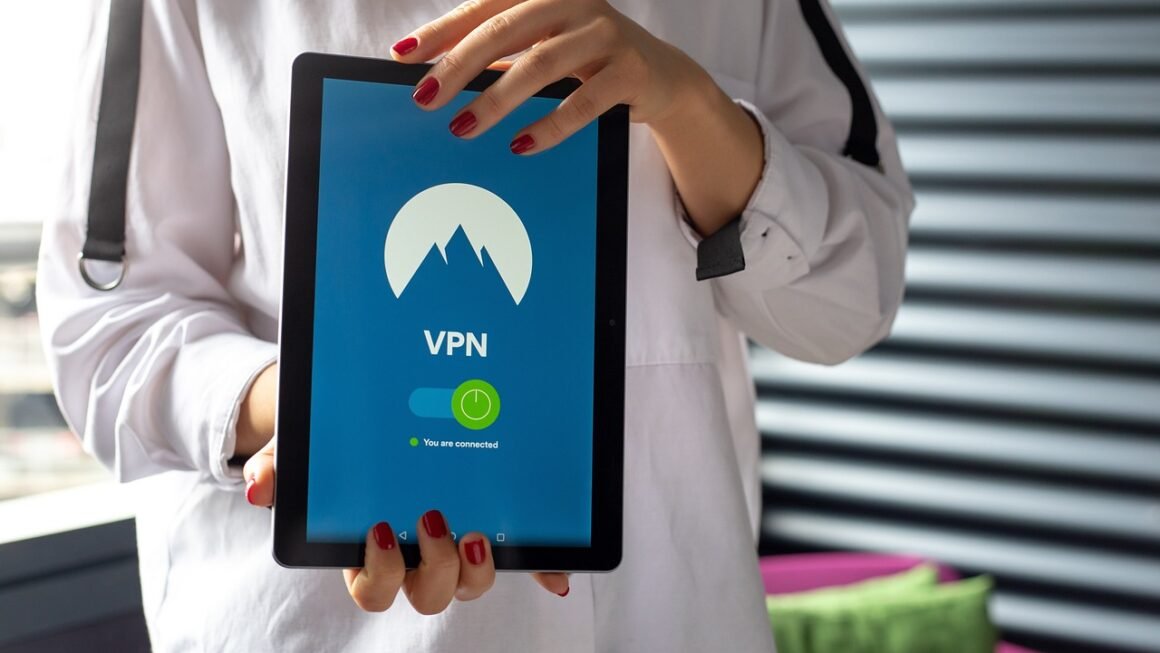
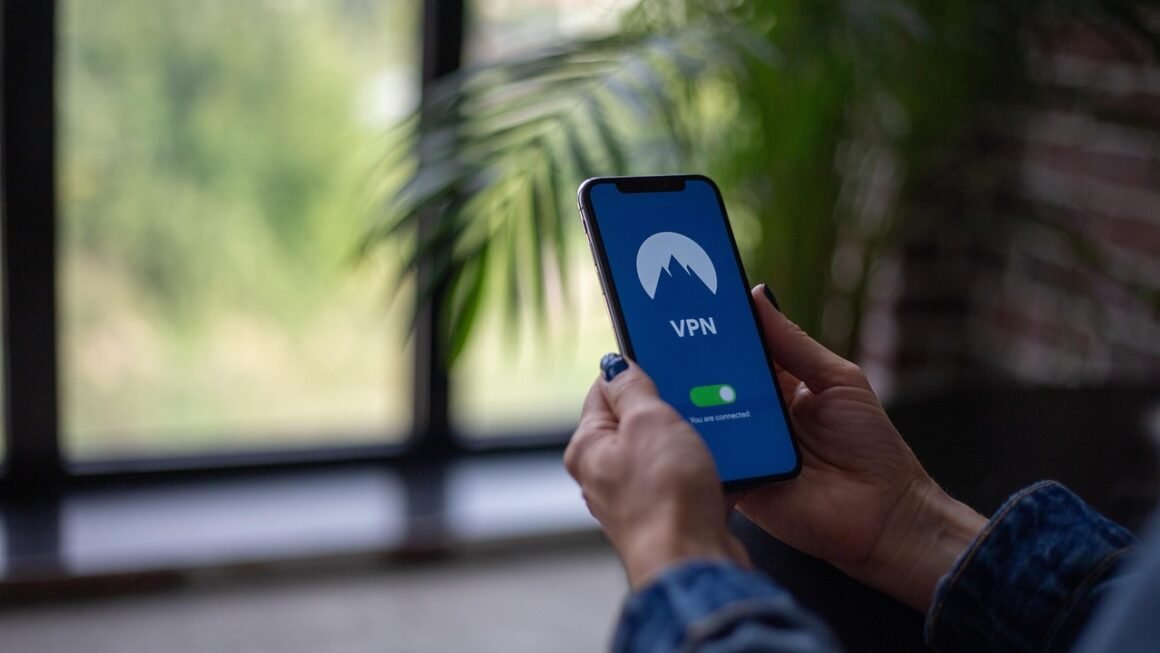
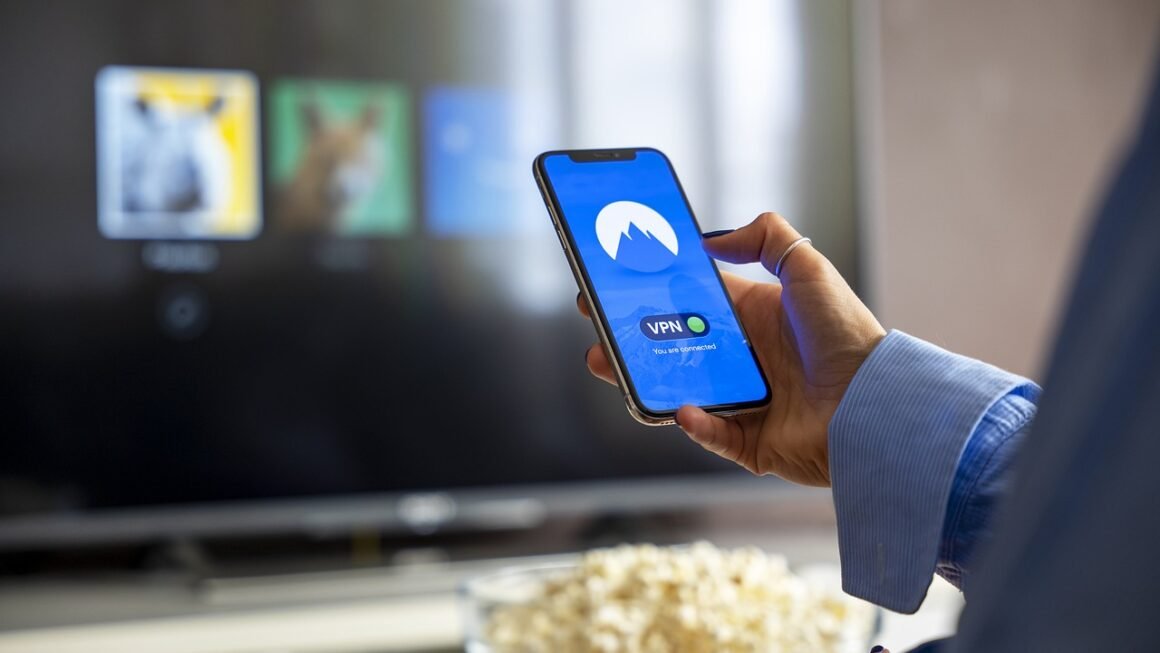
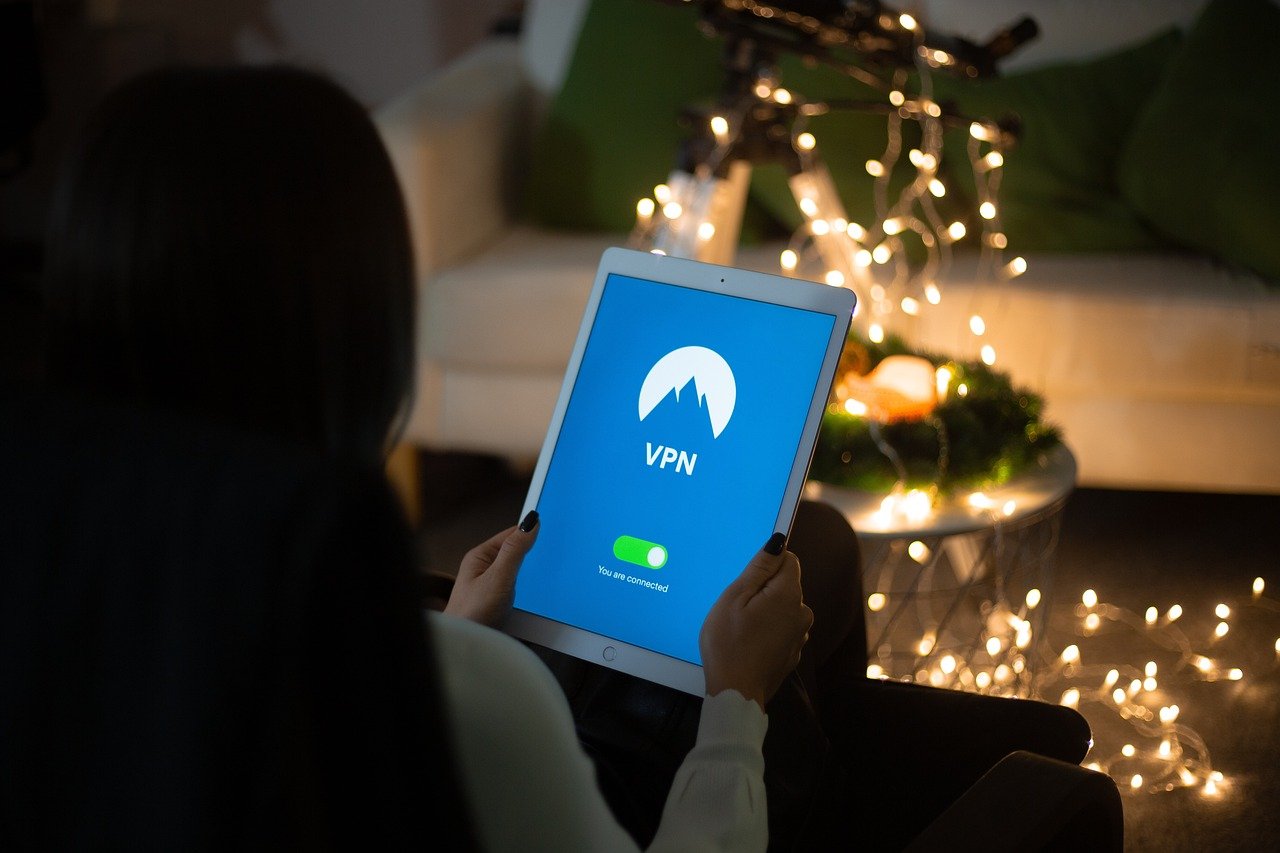
- Clear Status Indicators: The UI should clearly display the VPN’s current status (connected, disconnected, connecting) and the server location.
- Example: A VPN app with a large, prominent connect button and a clear status indicator on the main screen is more user-friendly than one that requires navigating through multiple menus to connect.
Security and Transparency
The UI should instill confidence in the user that their connection is secure. It should clearly communicate the security features being used and any potential risks.
- Encryption Protocol Display: The UI should clearly show the encryption protocol being used (e.g., OpenVPN, IKEv2, WireGuard). Users may not understand the specifics, but knowing it’s displaying the encryption used adds transparency.
- Kill Switch Status: The kill switch, a crucial feature that prevents data leaks if the VPN connection drops, should be easily toggled and its status clearly displayed.
- Leak Test Integration: Ideally, the UI would integrate or link to leak tests (DNS, WebRTC, IP address) to allow users to verify their connection’s security.
- Example: Some VPNs display a padlock icon next to the connection status, changing color to indicate the security level. Green might signify a secure connection, while yellow could indicate a potential issue requiring attention.
Feature Discovery and Management
VPNs offer a range of features, from split tunneling to custom DNS settings. The UI should make these features discoverable and easy to manage.
- Categorized Settings: Group related settings together logically (e.g., Connection settings, Privacy settings, Advanced settings).
- Tooltip Explanations: Provide clear explanations of each setting or feature, either through tooltips or dedicated help sections.
- Customization Options: Allow users to customize the UI to their preferences, such as choosing a light or dark theme or adjusting the server list display.
- Example: A well-designed VPN UI might offer a “Recommended Settings” option for beginners, applying optimal security configurations with a single click, while advanced users can delve into individual settings for fine-grained control.
Key Elements of a Well-Designed VPN UI
Server Selection and Display
Choosing the right server is crucial for performance and accessing region-specific content. The UI should make this process efficient.
- Server List Organization: Servers should be organized by country, region, and sometimes by usage (e.g., streaming, P2P).
- Ping Time Display: Displaying ping times allows users to choose servers with low latency for faster speeds. A ping test feature is ideal.
- Search Functionality: A search bar allows users to quickly find specific servers or countries.
- Favorites List: Users should be able to save frequently used servers for quick access.
- Load Indicators: Some VPNs display server load (percentage of usage), helping users avoid overloaded servers and improve performance.
- Example: A map-based server selection interface can be visually appealing and intuitive, allowing users to click on a country to see available servers.
Settings and Configuration
The settings menu should provide comprehensive control over the VPN’s behavior.
- Connection Protocols: Allow users to choose from various VPN protocols (OpenVPN, IKEv2, WireGuard, etc.). Include short descriptions explaining the pros and cons of each protocol.
- Kill Switch Settings: Enable/disable the kill switch and configure its behavior (e.g., block all internet access or only specific applications).
- DNS Settings: Allow users to choose custom DNS servers for enhanced privacy or to bypass DNS-based censorship.
- Split Tunneling: Allow users to route only specific applications or websites through the VPN, while others use the regular internet connection. This is useful for performance optimization.
- Auto-Connect Options: Configure the VPN to automatically connect on startup or when joining an untrusted network.
- Example: Some VPNs allow users to create profiles with different settings for different situations (e.g., a profile for streaming, a profile for secure browsing).
Visual Design and Branding
The visual design of the UI should be consistent with the VPN provider’s brand and contribute to a positive user experience.
- Clean and Modern Design: Avoid clutter and use a consistent color palette and typography.
- Responsive Design: The UI should be responsive and adapt to different screen sizes and devices.
- Accessibility: Ensure the UI is accessible to users with disabilities, following accessibility guidelines (WCAG).
- Branding Consistency: The UI should reflect the VPN provider’s brand identity (logo, colors, typography).
- Example: A VPN with a minimalist design, clear icons, and well-spaced elements will be more visually appealing and easier to use than one with a cluttered and outdated interface.
Optimizing VPN UI for Different Platforms
Desktop Applications
Desktop VPN applications offer the most screen real estate and allow for more complex features and settings.
- Larger Server Lists: Display a larger server list with more information (ping time, load, country, region).
- Advanced Settings: Provide access to advanced settings, such as custom routing rules, port forwarding, and script execution.
- Visualizations: Use charts and graphs to display connection statistics (bandwidth usage, connection speed).
Mobile Applications
Mobile VPN applications need to be optimized for smaller screens and touch interactions.
- Simplified Navigation: Use a simplified navigation structure with fewer options.
- Large Touch Targets: Ensure buttons and other interactive elements are large enough to be easily tapped.
- Minimalist Design: Avoid clutter and focus on the essential features.
- Quick Connect: Offer a quick connect option that automatically connects to the fastest available server.
Browser Extensions
Browser extensions offer a convenient way to manage VPN connections directly from the browser.
- Compact Interface: Keep the interface compact and unobtrusive.
- Quick Connect/Disconnect: Provide a quick connect/disconnect button for easy access.
- Limited Settings: Focus on the most essential settings, such as server selection and protocol selection.
- Website Whitelisting: Allow users to whitelist specific websites that should bypass the VPN connection.
Conclusion
Choosing a VPN involves more than just considering its security features and server network. The user interface plays a critical role in the overall experience. A well-designed VPN UI simplifies the process of connecting to a secure server, managing settings, and understanding your security status. By prioritizing ease of use, transparency, and feature discoverability, VPN providers can create user-friendly interfaces that empower users to protect their online privacy and security. When selecting a VPN, take the time to evaluate its UI and ensure it meets your needs and preferences. This seemingly small detail can make a significant difference in your overall VPN experience.