
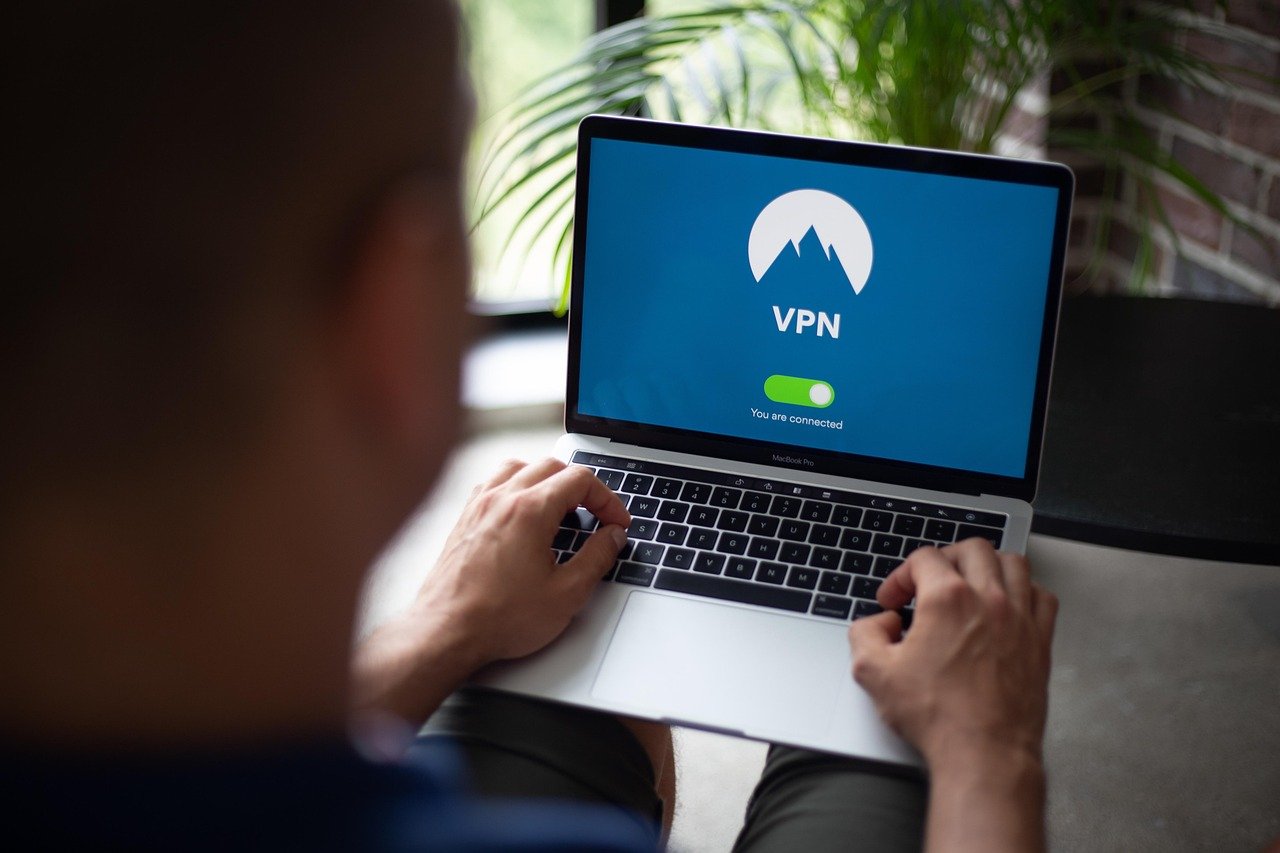
Is your webcam watching you? It’s a question many of us have pondered, and with good reason. The potential for privacy breaches through compromised webcams is a real concern in today’s digital age. Fortunately, a simple solution exists: the webcam blocker. But with so many options available, how do you choose the right one and why should you even bother? This comprehensive guide will walk you through everything you need to know about webcam blockers, empowering you to take control of your privacy.
Why You Need a Webcam Blocker
The Growing Threat of Webcam Hacking
- The threat of webcam hacking is more prevalent than you might think. Cybercriminals can gain unauthorized access to your webcam through malware or vulnerabilities in your device’s security.
- A study found that a significant percentage of users have never changed the default password on their IoT devices, making them easy targets for hackers who can exploit default credentials to access their cameras.
- Example: Imagine a scenario where a hacker gains access to your webcam and silently records your activities. They could then use this footage for blackmail, identity theft, or other malicious purposes.
- This threat extends to both personal and professional environments, as attackers can compromise webcams on laptops, desktops, and even smart TVs.
Protection Against Accidental Activation
- Webcam blockers aren’t just for preventing deliberate hacking attempts. They also protect against accidental webcam activations due to software glitches or misconfigured settings.
- Have you ever been in a meeting and accidentally turned on your camera without realizing it? A webcam blocker eliminates that risk, ensuring you’re always in control of when your camera is active.
- Example: Imagine you’re working from home and accidentally trigger your webcam during a casual conversation. A physical blocker prevents this embarrassing situation.
- Many applications request camera access, and a blocker provides a constant visual reminder that your camera is secure.
Types of Webcam Blockers
Physical Webcam Covers
- These are the most common type of webcam blocker, consisting of a small piece of plastic or metal that adheres to your device and slides to cover or uncover the lens.
- Pros:
Simple to install and use
Affordable
Provides a clear visual indicator of whether the camera is blocked
Available in various designs and colors
- Cons:
Can potentially damage your device’s screen if not installed properly or if the device is closed too forcefully. Look for thin designs that won’t interfere with closing your laptop.
Might not be aesthetically pleasing to everyone.
- Example: The popular “CloudValley Webcam Cover Slide” is a thin, durable option that offers reliable physical protection.
Digital Webcam Blockers (Software)
- Digital webcam blockers are software applications that disable your webcam at the driver level, preventing any applications from accessing it.
- Pros:
Can be more convenient for users who don’t want to physically block their camera.
Often includes additional security features like microphone blocking.
No risk of physical damage to your device.
- Cons:
Relies on the software being secure and trustworthy. A compromised digital blocker could itself be used to access your webcam.
May require more technical knowledge to configure and use.
Can sometimes interfere with legitimate applications that need webcam access.
- Example: Many antivirus and security suites include webcam protection features that act as digital blockers. Check your existing security software for such functionality.
Integrated Webcam Disablement (Device Settings)
- Most operating systems allow you to disable your webcam directly through the device settings.
- Pros:
Doesn’t require installing any additional software.
Completely disables the webcam at the system level.
- Cons:
Requires navigating through system settings to enable or disable the webcam, which can be time-consuming.
May not be as user-friendly as dedicated webcam blocker applications.
- Example: On Windows, you can disable your webcam through the Device Manager. On macOS, you can restrict camera access through System Preferences > Security & Privacy > Camera.
How to Choose the Right Webcam Blocker
Assessing Your Needs and Risks
- Consider your individual needs and the level of security you require.
- Are you primarily concerned about accidental activation, or are you worried about targeted hacking attempts?
- Do you prefer a simple, low-tech solution or a more advanced software-based approach?
- If you frequently use your webcam for video conferencing, a physical blocker with a sliding mechanism might be the most convenient option.
- For maximum security, consider using a combination of physical and digital blockers.
Factors to Consider
- Material and Durability: Look for physical blockers made from high-quality materials like metal or durable plastic that won’t easily break or scratch your device.
- Adhesive Quality: Ensure the adhesive is strong enough to hold the blocker in place but won’t leave residue when removed.
- Thickness: Choose a thin design that won’t interfere with closing your laptop or tablet.
- Compatibility: Make sure the blocker is compatible with your device’s webcam size and shape.
- Software Reputation: If opting for a digital blocker, research the software developer and read reviews to ensure it’s trustworthy.
Installation and Usage Tips
- Physical Blockers:
Clean the area around your webcam before applying the blocker.
Apply gentle pressure to ensure a secure bond.
Test the sliding mechanism to make sure it moves smoothly.
- Digital Blockers:
Download the software from the official website to avoid malware.
Follow the installation instructions carefully.
Test the software to ensure it’s functioning correctly.
- Device Settings:
Make a note of the steps required to enable and disable your webcam.
Create a shortcut or bookmark for easy access to the device settings.
Additional Security Measures
Strong Passwords and Two-Factor Authentication
- Using strong, unique passwords for all your online accounts is crucial to prevent hackers from gaining access to your device and webcam.
- Enable two-factor authentication (2FA) whenever possible to add an extra layer of security. 2FA requires a second verification method, such as a code sent to your phone, in addition to your password.
Keeping Your Software Up to Date
- Regularly update your operating system, web browser, and other software to patch security vulnerabilities that hackers could exploit.
- Enable automatic updates to ensure you always have the latest security patches.
Using a Reliable Antivirus Program
- Install a reputable antivirus program and keep it updated to protect your device from malware and other threats that could compromise your webcam.
- Run regular scans to detect and remove any malicious software.
Being Cautious About Links and Attachments
- Avoid clicking on suspicious links or opening attachments from unknown senders.
- These links and attachments could contain malware that could give hackers access to your webcam.
Conclusion
Protecting your privacy in the digital age is more important than ever, and a webcam blocker is a simple yet effective tool to safeguard yourself from potential threats. Whether you opt for a physical cover, a digital solution, or a combination of both, taking proactive steps to secure your webcam can provide peace of mind and prevent unwanted intrusions. By understanding the different types of blockers available, assessing your individual needs, and implementing additional security measures, you can take control of your privacy and enjoy a safer online experience.



