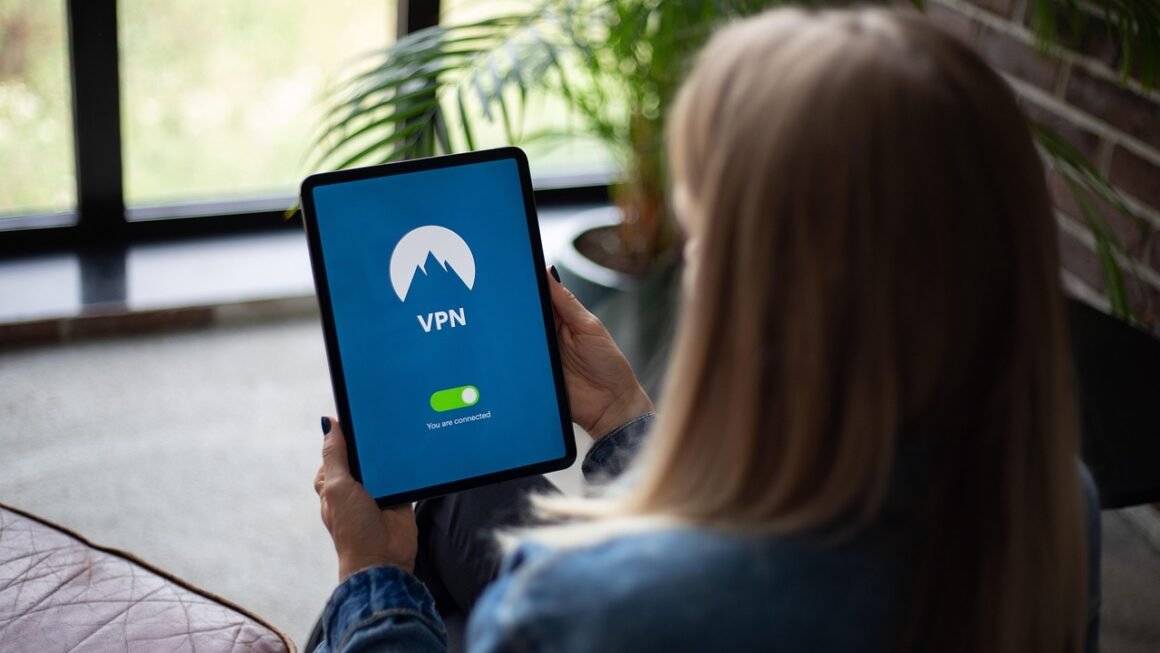
Looking to enhance your online privacy and security on your Mac? A Virtual Private Network (VPN) is an essential tool for safeguarding your data and accessing content from anywhere in the world. In this comprehensive guide, we’ll explore everything you need to know about VPNs for Mac, from understanding their benefits to choosing the right provider and configuring your connection. Let’s dive in and unlock a safer, more unrestricted online experience.
Why You Need a VPN on Your Mac
Enhanced Security on Public Wi-Fi
Public Wi-Fi networks are notoriously insecure, making them prime targets for hackers. When you connect to a public hotspot at a cafe, airport, or hotel, your data can be easily intercepted. A VPN encrypts your internet traffic, shielding your sensitive information—passwords, credit card details, and personal communications—from prying eyes.
- Practical Example: Imagine you’re checking your bank account on a public Wi-Fi network without a VPN. A hacker could potentially intercept your login credentials and gain access to your account. A VPN prevents this by encrypting the data transmitted between your Mac and the bank’s server.
- Benefit: Protection against man-in-the-middle attacks and data breaches.
Bypassing Geo-Restrictions and Censorship
Many streaming services, websites, and online resources are geographically restricted, meaning they’re only accessible in certain countries. A VPN allows you to bypass these restrictions by connecting to a server in a different location, effectively masking your true IP address and making it appear as though you’re browsing from that country.
- Practical Example: Want to watch a TV show that’s only available on Netflix US while traveling abroad? Connect to a US-based VPN server, and you’ll be able to access the show as if you were in the United States.
- Benefit: Access to a wider range of content and unrestricted browsing.
Protecting Your Privacy from ISP Tracking
Your Internet Service Provider (ISP) can track your online activity, including the websites you visit and the content you download. This data can be used for targeted advertising or even sold to third parties. A VPN encrypts your traffic, preventing your ISP from monitoring your browsing habits and protecting your privacy.
- Practical Example: Without a VPN, your ISP knows every website you visit. With a VPN, they only see that you’re connected to a VPN server, but they can’t see the specific websites you’re accessing.
- Benefit: Increased privacy and control over your online data.
- Statistic: According to a recent survey, 68% of internet users are concerned about their online privacy.
Choosing the Right VPN for Your Mac
Key Features to Consider
Selecting the right VPN for your Mac involves considering several key features that ensure optimal security, performance, and usability.
- Strong Encryption: Look for a VPN that uses strong encryption protocols, such as AES-256, to protect your data.
- No-Logs Policy: Choose a VPN with a strict no-logs policy, meaning it doesn’t track or store your browsing activity.
- Server Locations: A wide range of server locations allows you to bypass geo-restrictions and find the best connection speed.
- Speed and Bandwidth: Opt for a VPN that offers fast speeds and unlimited bandwidth for seamless streaming and browsing.
- User-Friendly Interface: A simple and intuitive interface makes it easy to connect to the VPN and manage your settings.
- Customer Support: Responsive and helpful customer support is essential in case you encounter any issues.
- Kill Switch: Ensures your data is protected even if the VPN connection drops.
Top VPN Providers for Mac
Here are some of the top VPN providers that offer excellent performance and features for Mac users:
- ExpressVPN: Known for its speed, reliability, and user-friendly interface.
- NordVPN: Offers a wide range of server locations and advanced security features.
- Surfshark: An affordable option with unlimited device connections and strong encryption.
- CyberGhost: Features a dedicated Mac app with optimized server profiles for streaming and torrenting.
- Private Internet Access (PIA): A highly customizable VPN with advanced privacy features.
Free vs. Paid VPNs
While free VPNs may seem tempting, they often come with limitations and potential risks. Paid VPNs typically offer better security, faster speeds, and unlimited bandwidth, as well as no-logs policies and reliable customer support. Free VPNs can log your data, serve ads, and even contain malware. Consider these factors before choosing a free VPN.
- Risk with Free VPNs: Data logging, malware, slow speeds, limited bandwidth, advertisements.
- Benefits of Paid VPNs: Strong encryption, no-logs policy, fast speeds, unlimited bandwidth, reliable customer support.
- Actionable Takeaway: Evaluate the long-term costs and benefits before opting for a free VPN.
Setting Up a VPN on Your Mac
Using a VPN App
The easiest way to set up a VPN on your Mac is by using a dedicated VPN app. Most VPN providers offer user-friendly apps that you can download and install on your computer.
- Download and Install: Download the VPN app from your provider’s website and follow the installation instructions.
- Login: Enter your login credentials (username and password) to access the app.
- Connect: Select a server location and click the “Connect” button to establish a VPN connection.
- Verify: Use a website like iplocation.net to verify that your IP address has changed and your location is masked.
Configuring a VPN Manually
You can also configure a VPN connection manually on your Mac using the built-in VPN settings. This option requires more technical knowledge, but it can be useful if your VPN provider doesn’t offer a dedicated app.
- Gather VPN Settings: Obtain the necessary VPN settings from your provider, including the server address, protocol (e.g., IKEv2, L2TP/IPsec, PPTP), username, and password.
- Open System Preferences: Go to System Preferences > Network.
- Add VPN Connection: Click the “+” button to add a new network service and select “VPN” from the interface list.
- Configure VPN Settings: Enter the VPN settings provided by your provider, including the server address, account name, and password.
- Connect: Click the “Connect” button to establish the VPN connection.
Troubleshooting Common VPN Issues
Even with the best VPN providers, you may occasionally encounter technical issues. Here are some common problems and their solutions:
- Slow Speeds: Try connecting to a different server location, especially one closer to your actual location.
- Connection Problems: Check your internet connection and make sure your VPN settings are correct. Restarting your Mac or your router can also resolve the issue.
- IP Address Leak: Ensure your VPN has a kill switch enabled to prevent your IP address from being exposed if the VPN connection drops. Clear your browser cache and cookies to prevent location data from being leaked.
- DNS Leak: Use a website like DNSLeakTest.com to check for DNS leaks. Enable DNS leak protection in your VPN app or configure custom DNS servers.
Best Practices for VPN Usage on Mac
Always Connect to a VPN on Public Wi-Fi
Whenever you’re using a public Wi-Fi network, make sure to connect to your VPN before browsing the web or accessing any sensitive information. This will encrypt your traffic and protect your data from potential threats.
Use a Strong Password and Enable Two-Factor Authentication
Protect your VPN account with a strong, unique password and enable two-factor authentication for added security. This will prevent unauthorized access to your VPN account and protect your online privacy.
Keep Your VPN Software Up to Date
Regularly update your VPN software to ensure you have the latest security patches and features. Updates can fix vulnerabilities and improve the overall performance and security of your VPN connection.
Choose the Right VPN Protocol
Different VPN protocols offer varying levels of security and speed. OpenVPN is generally considered the most secure protocol, while IKEv2 is faster and more stable on mobile devices. WireGuard is another modern protocol that offers a good balance of speed and security.
- OpenVPN: Most secure, supports strong encryption.
- IKEv2: Fast and stable, ideal for mobile devices.
- WireGuard: Modern protocol, good balance of speed and security.
Regularly Check Your VPN Connection
Periodically check your VPN connection to ensure it’s still active and that your IP address is being masked correctly. Use a website like WhatIsMyIPAddress.com to verify your IP address and location.
Conclusion
A VPN is an indispensable tool for enhancing your online privacy and security on your Mac. By encrypting your internet traffic, masking your IP address, and bypassing geo-restrictions, a VPN provides a safer and more unrestricted online experience. By choosing the right VPN provider, configuring your connection properly, and following best practices, you can enjoy the benefits of a VPN and protect your data from prying eyes. Take control of your online privacy today with a reliable VPN for your Mac!