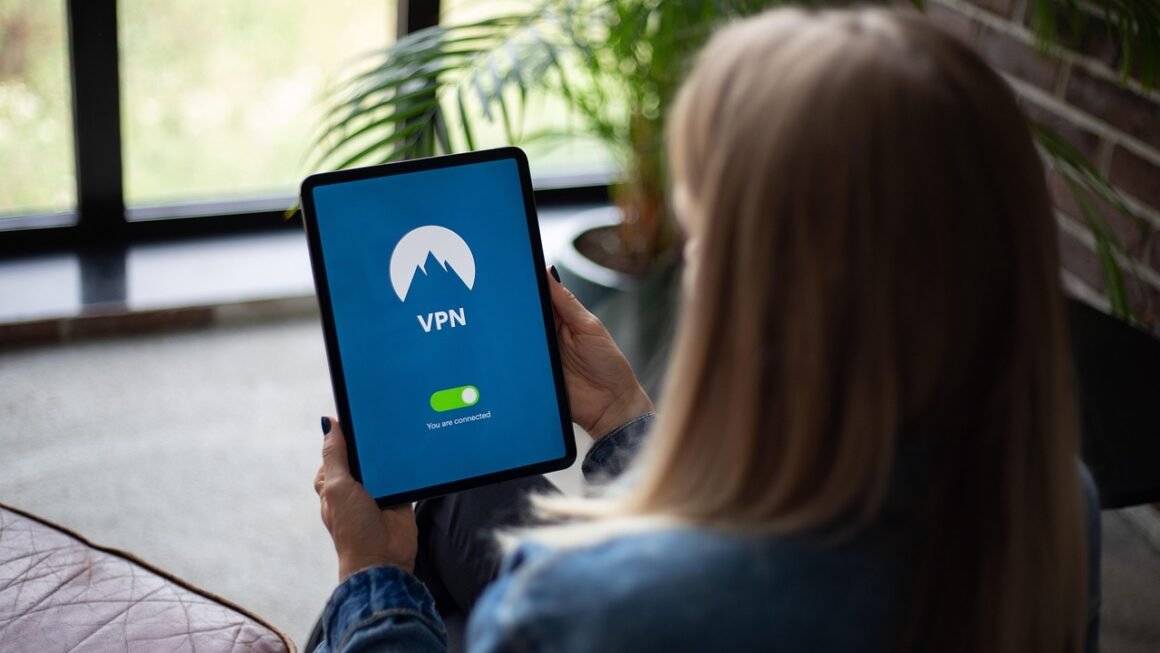
Securing your online activity on a Windows device is more critical than ever in today’s digital landscape. With rising cyber threats and concerns about privacy, a Virtual Private Network (VPN) is an essential tool for protecting your sensitive data. This comprehensive guide explores the benefits, features, and practical applications of using a VPN on Windows, ensuring you stay safe and secure while navigating the internet.
Why Use a VPN on Windows?
Enhanced Security and Privacy
The primary benefit of using a VPN on Windows is the enhanced security and privacy it provides. A VPN encrypts your internet traffic, making it unreadable to third parties, such as hackers, ISPs (Internet Service Providers), and government agencies. This is especially crucial when using public Wi-Fi networks, which are notoriously insecure.
- Encryption: VPNs use strong encryption protocols (e.g., AES-256) to scramble your data.
- IP Masking: Your real IP address is hidden, replaced with one from the VPN server, making it difficult to trace your online activities back to you.
- Data Protection: Sensitive information like passwords, financial details, and personal communications are shielded from prying eyes.
Example: Imagine you’re working from a coffee shop using their public Wi-Fi. Without a VPN, anyone on the same network could potentially intercept your data. With a VPN, your connection is encrypted, rendering your data useless to attackers.
Bypassing Geo-Restrictions and Censorship
VPNs allow you to bypass geographical restrictions and censorship imposed by governments, websites, or streaming services. By connecting to a VPN server in a different country, you can access content that is otherwise unavailable in your region.
- Accessing Streaming Services: Watch movies and TV shows on platforms like Netflix, Hulu, and BBC iPlayer that are only available in specific countries.
- Unblocking Websites: Bypass censorship and access websites blocked by governments or organizations.
- Traveling Abroad: Maintain access to your favorite home country content while traveling internationally.
Example: Suppose you want to watch a TV show on Netflix that is only available in the US. By connecting to a US-based VPN server, you can access the US Netflix library and watch the show from anywhere in the world.
Secure Torrenting and P2P File Sharing
Many VPN providers offer specialized servers optimized for torrenting and P2P (peer-to-peer) file sharing. These servers provide enhanced security and privacy, protecting you from copyright infringement claims and potential legal issues.
- Anonymous Torrenting: Hide your IP address and download files anonymously.
- Avoid ISP Throttling: Prevent your ISP from throttling your internet speed when engaging in torrenting activities.
- Legal Protection: Reduce the risk of receiving copyright infringement notices or facing legal action.
Important Note: Ensure that your VPN provider has a strict no-logs policy to further protect your privacy during torrenting.
Choosing the Right VPN for Windows
Key Features to Consider
Selecting the right VPN for your Windows device requires careful consideration of several key features:
- Security Protocols: Look for VPNs that support strong encryption protocols like OpenVPN, IKEv2/IPsec, and WireGuard.
- Server Network: Choose a VPN with a large and diverse server network, allowing you to connect to servers in various locations.
- No-Logs Policy: Ensure that the VPN provider has a strict no-logs policy, meaning they do not collect or store any data about your online activities.
- Speed and Performance: Opt for a VPN that offers fast and reliable connection speeds to avoid buffering and lag.
- User-Friendly Interface: The VPN app should be easy to install, configure, and use, even for beginners.
- Customer Support: Look for VPN providers that offer responsive and helpful customer support, preferably through live chat or email.
Top VPN Providers for Windows
Here are some of the top VPN providers known for their performance, security, and user-friendliness on Windows:
- NordVPN: Offers a large server network, strong encryption, and a user-friendly interface.
- ExpressVPN: Known for its fast speeds, robust security features, and excellent customer support.
- Surfshark: Allows unlimited device connections and offers a range of advanced features at a competitive price.
- CyberGhost: Provides dedicated servers for streaming and torrenting, with a focus on ease of use.
- Private Internet Access (PIA): Highly customizable and offers a wide range of advanced features for experienced users.
Tip: Before committing to a long-term subscription, take advantage of free trials or money-back guarantees to test the VPN’s performance and compatibility with your Windows device.
Setting Up and Using a VPN on Windows
Installation and Configuration
Installing and configuring a VPN on Windows is typically a straightforward process:
- Download the VPN App: Visit the VPN provider’s website and download the Windows app.
- Install the App: Run the installer and follow the on-screen instructions to install the VPN app on your device.
- Login or Create an Account: Open the app and log in with your VPN account credentials. If you don’t have an account, create one on the provider’s website.
- Connect to a Server: Choose a server location from the list and click the connect button. The app will establish a secure connection to the VPN server.
- Verify Your Connection: Use an online IP address checker to confirm that your IP address has been changed and your location is masked.
Advanced Settings and Features
Most VPN apps offer a range of advanced settings and features that allow you to customize your VPN experience:
- Kill Switch: Automatically disconnects your internet connection if the VPN connection drops, preventing data leaks.
- Split Tunneling: Allows you to choose which apps or websites use the VPN connection and which use your regular internet connection.
- DNS Leak Protection: Prevents your DNS requests from being exposed, ensuring that your online activities remain private.
- Customizable Encryption: Allows you to adjust the encryption level for optimal performance and security.
Example: If you only want to use the VPN for torrenting, you can enable split tunneling and configure it to only route your torrent client through the VPN connection.
Troubleshooting Common VPN Issues on Windows
Connection Problems
If you encounter connection problems while using a VPN on Windows, try the following troubleshooting steps:
- Check Your Internet Connection: Ensure that your internet connection is stable and working properly.
- Restart the VPN App: Close and reopen the VPN app to refresh the connection.
- Switch Servers: Try connecting to a different server location.
- Change VPN Protocol: Experiment with different VPN protocols (e.g., OpenVPN, IKEv2/IPsec) in the app settings.
- Disable Firewall or Antivirus: Temporarily disable your firewall or antivirus software to see if they are interfering with the VPN connection.
- Contact Customer Support: Reach out to the VPN provider’s customer support team for assistance.
Speed Issues
If you experience slow internet speeds while using a VPN, consider the following:
- Choose a Closer Server: Connect to a server that is geographically closer to your location.
- Use a Faster Protocol: Opt for a lightweight VPN protocol like WireGuard or IKEv2/IPsec.
- Close Unnecessary Apps: Close any bandwidth-intensive apps or programs that are running in the background.
- Upgrade Your Subscription: Consider upgrading to a premium VPN plan that offers faster speeds and more server options.
Conclusion
Using a VPN on Windows is a crucial step in protecting your online privacy and security. By encrypting your internet traffic, masking your IP address, and allowing you to bypass geo-restrictions, a VPN provides a comprehensive solution for staying safe and secure while browsing the web. Choosing the right VPN provider and understanding how to configure and troubleshoot your VPN connection are essential for maximizing its benefits. Take control of your online privacy today by implementing a VPN on your Windows device.