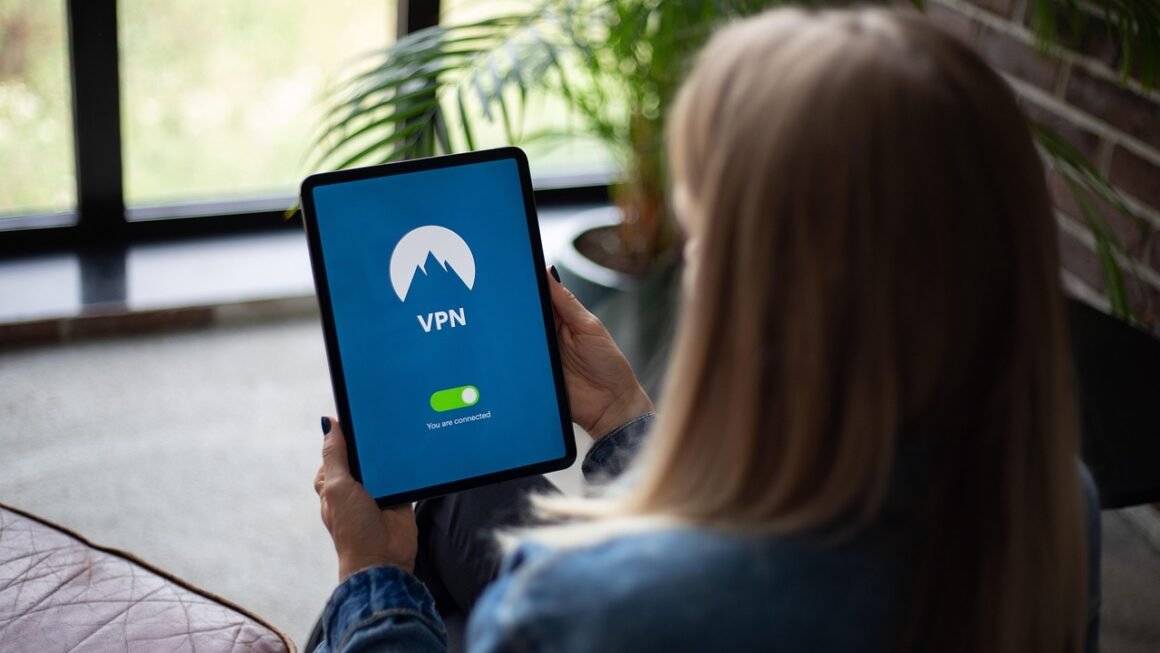
Securing your online activities on a Windows device is more crucial than ever. With increasing cyber threats and privacy concerns, a Virtual Private Network (VPN) offers a robust solution to protect your data, bypass geo-restrictions, and enjoy a safer internet experience. This comprehensive guide explores the benefits, features, and best practices of using a VPN for Windows, helping you make an informed decision for your online security needs.
Why Use a VPN on Windows?
A VPN encrypts your internet traffic and routes it through a server in a location of your choice, masking your IP address and making your online activities virtually untraceable. This adds an extra layer of security and privacy, protecting your sensitive information from prying eyes.
Enhanced Security on Public Wi-Fi
- Public Wi-Fi networks are notorious for being unsecured, making them hotspots for cybercriminals.
- A VPN encrypts your data, preventing hackers from intercepting your passwords, credit card details, and other personal information.
- Example: Using a VPN at a coffee shop ensures that your online banking transactions remain private and secure.
Bypassing Geo-Restrictions
- Many streaming services, websites, and online games are only available in certain regions.
- A VPN allows you to connect to a server in a different country, bypassing these geo-restrictions and accessing content from anywhere in the world.
- Example: Connect to a UK server to watch BBC iPlayer outside of the UK.
- According to recent data, over 30% of VPN users employ the service to access region-locked content.
Protecting Your Privacy
- A VPN masks your IP address, preventing websites, advertisers, and government agencies from tracking your online activities.
- It encrypts your traffic, making it difficult for ISPs to monitor your browsing history.
- Example: A VPN protects your privacy when browsing sensitive topics or engaging in online activism.
Secure File Sharing
- When using peer-to-peer (P2P) file sharing, your IP address is often exposed, making you vulnerable to copyright infringement notices and potential legal action.
- A VPN hides your IP address, protecting your identity and allowing you to download files anonymously.
- Note: Always ensure you’re downloading content legally.
Key Features to Look for in a Windows VPN
Choosing the right VPN for your Windows device can be overwhelming, considering the numerous options available. Focus on these key features to make an informed decision.
Strong Encryption Protocols
- The VPN should use strong encryption protocols like AES-256 to protect your data.
- OpenVPN and WireGuard are considered industry-standard protocols known for their security and speed.
- Avoid VPNs that use outdated or weak encryption protocols like PPTP.
No-Logs Policy
- A no-logs policy ensures that the VPN provider does not store any information about your online activities, including your browsing history, IP address, and connection timestamps.
- Look for VPNs that have undergone independent audits to verify their no-logs policy.
- Example: Providers like ExpressVPN and NordVPN have had their no-logs claims verified by third-party audits.
Kill Switch
- A kill switch automatically disconnects your internet connection if the VPN connection drops, preventing your data from being exposed.
- This feature is crucial for maintaining your privacy and security, especially when using public Wi-Fi.
- Make sure the VPN app offers a configurable kill switch.
Server Network
- A large server network provides you with more options for connecting to different locations and bypassing geo-restrictions.
- Look for VPNs with servers in multiple countries and regions, ensuring optimal performance and access to content.
- Having multiple servers also helps with load balancing to maintain performance.
Speed and Performance
- A good VPN should offer fast and reliable connection speeds, allowing you to browse, stream, and download content without any noticeable lag.
- Test the VPN’s speed by connecting to different servers and performing speed tests.
- Factors like server proximity and network infrastructure influence VPN speed.
Setting Up and Using a VPN on Windows
Setting up and using a VPN on Windows is a straightforward process. Here’s a step-by-step guide.
Choosing a VPN Provider
- Research different VPN providers and compare their features, pricing, and reviews.
- Consider factors like security, speed, server network, and customer support.
- Opt for reputable VPN providers with a proven track record.
Downloading and Installing the VPN App
- Visit the VPN provider’s website and download the Windows app.
- Follow the installation instructions to install the app on your device.
- Ensure you download the app from the official website to avoid malware.
Configuring the VPN App
- Open the VPN app and log in with your account credentials.
- Select a server location from the list of available options.
- Enable the kill switch and other security features.
Connecting to a VPN Server
- Click the “Connect” button to establish a VPN connection.
- The app will display your new IP address and the server location you’re connected to.
- Verify that the connection is secure by visiting a website like ipinfo.io.
Troubleshooting Common Issues
- If you experience connection problems, try connecting to a different server or restarting the VPN app.
- Check your internet connection and firewall settings.
- Contact the VPN provider’s customer support for assistance.
VPN Security Best Practices for Windows
To maximize the benefits of using a VPN on Windows, follow these security best practices.
Regularly Update Your VPN App
- Keep your VPN app up to date to ensure that you have the latest security patches and features.
- Most VPN apps offer automatic updates.
Use Strong Passwords
- Use strong, unique passwords for your VPN account and other online accounts.
- Consider using a password manager to generate and store your passwords securely.
Enable Two-Factor Authentication (2FA)
- Enable 2FA on your VPN account to add an extra layer of security.
- 2FA requires you to enter a code from your mobile device in addition to your password.
Be Cautious of Phishing Scams
- Be wary of phishing emails and websites that try to steal your login credentials.
- Always verify the authenticity of emails and websites before entering your personal information.
Avoid Free VPNs
- Free VPNs often come with hidden costs, such as data logging, malware, and slow connection speeds.
- Opt for a reputable paid VPN provider for better security and performance.
- Many “free” VPNs monetize your data, defeating the purpose of using a VPN in the first place.
Conclusion
Using a VPN on your Windows device is an essential step towards protecting your online privacy and security. By encrypting your internet traffic, masking your IP address, and bypassing geo-restrictions, a VPN provides a safer and more open internet experience. Remember to choose a reputable VPN provider with strong encryption, a no-logs policy, and a kill switch. By following the best practices outlined in this guide, you can enjoy the full benefits of using a VPN on Windows and stay safe online.